You bought a Mac. Your work runs on Windows. Now what?
It happens frequently. Companies use applications that work only on Windows – financial, CAD applications, outdated software, or their own applications. And if you have a Mac, you need to somehow get access to the Windows operating system without purchasing another computer.
This is exactly the issue solved by windows RDP for Mac. Remote desktop protocol is abbreviated RDP. It will enable you to remotely access the Windows machine or server from your Mac and run applications on the Windows OS on your Mac’s screen.
Here is what you will learn in this article:
What is RDP and why is it convenient for Mac
How to set up a windows RDP client for Mac step by step
How to fix the annoying “not full screen” display bug
Which windows RDP app for Mac is worth using
How to keep your connection secure
Let’s get started.
Windows RDP – What Is This? Why Would You Need It on Your Mac?
RDP is developed by Microsoft. Using RDP, it becomes possible to transmit your Windows desktop screen, keyboard and mouse operations through the internet. Instead of installing Windows on your Mac, you simply “remote in” to a Windows machine running somewhere else in an office, a data center, or the cloud.
Here’s why this matters for Mac users specifically:
No dual boot needed. You don’t need Boot Camp or a virtual machine eating up your Mac’s storage and battery.
Lightweight. RDP only streams the screen data, not the entire operating system, so it runs smoothly even on older Macs.
Works from anywhere. As long as you have internet you can access your Windows desktop from a MacBook Air in a coffee shop or an iMac at home.
Great for teams. Businesses that have mixed devices (some employees use Mac, while others use Windows) can have uniform access to software without necessarily having to provide identical hardware for all.
Windows RDP for Mac: What You Need Before You Start
Before setting up your connection, make sure you have these three things ready:
A Windows RDP client for Mac — the app that runs on your Mac and displays the remote Windows session.
Remote desktop access details — this includes the IP address (or hostname), username, and password of the Windows machine you’re connecting to. If you’re using a rented RDP server from a provider like buy-rdp, you’ll receive these details by email after purchase.
A stable internet connection — RDP is fairly light on bandwidth, but a shaky connection will cause lag and disconnections.
That’s it. No extra hardware needed; no Windows license necessary for your Mac computer.
Instructions for Using Windows RDP on Your Mac Computer
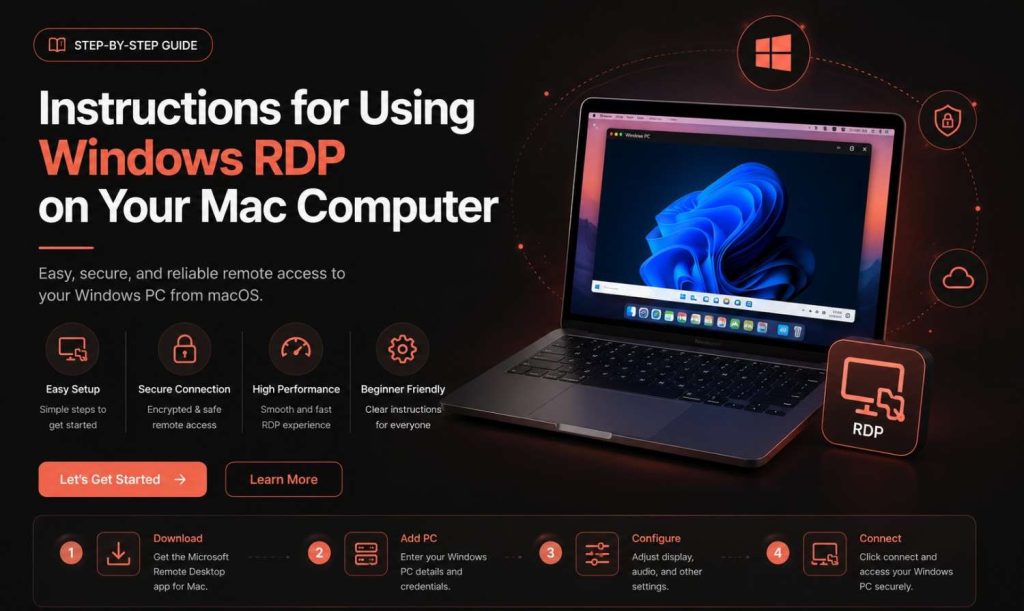
Step 1: Setup of Windows RDP on Mac OS X
The first thing you need to do is download an RDP client application because Mac OS X does not have an RDP application pre-installed. Microsoft Remote Desktop is recommended, but it’s free. It is available from the Mac App Store.
This is the one that is currently most popular when it comes to using Windows RDP on the Mac, since it is developed by none other than Microsoft itself.
Step 2: Launch the Application and Add a New Computer
Launch Microsoft Remote Desktop.
Press the + button on the upper menu, and click Add PC.
In the “PC name” area, insert either the IP address or the host name of the Windows computer.
Step 3: Insert Your Login Information
Click Add User Account.
Type the username and password provided to you by your IT department or RDP service provider.
Store the credentials such that you will not have to type them each time.
Step 4: Setting Up Display & Performance
Before making the connection, go to connection options (gear icon) to set up:
Display resolution — match it to your Mac’s screen for the sharpest image.
Colour quality — higher quality looks better but uses more bandwidth.
Sound — choose whether audio plays on your Mac or stays on the remote PC.
Step 5: Connect
Double-click the saved connection.
Accept the certificate warning if one appears (this is normal for most private RDP servers).
Your Windows desktop will now load inside the app window.
And that is the complete arrangement. With this done, you are free to run windows just like you were at your computer screen.
How to Fix Windows RDP for Mac Not Full Screen
This is one of the most common complaints Mac users search for:windows RDP for Mac not full screen. Should you come across the situation where the web conferencing window is not displayed in full size, then you have an option to correct the situation.
Option #1: Entering Full Screen Mode Through Window Menu
During the session, you will have to click on the Window Menu on the upper side of your computer screen and then click on Enter Full Screen option or use the keyboard shortcut Ctrl + Cmd + F.
Option #2: Checking Your Computer Display Resolution
Before connecting, edit your PC connection settings. While using the software called On Display, ensure that the option for “Resolution” is set to “Full Screen” or the native resolution of your Mac, rather than some other resolutions lower than it.
Option #3: Avoid Optimizing Images for Retina Displays
The problem that could arise on the Macs with Retina displays is the wrong scaling of images, resulting in poor quality display of images. You must avoid altering the scaling settings manually.
Option #4: Update the Program
The older versions of Microsoft Remote Desktop contain some bugs associated with multiple screens and full-screen mode. Update the application via the App Store.
If the issue persists after trying all four fixes, the problem is often on the server side — some RDP servers cap the resolution they’ll send. In that case, contact your RDP provider’s support team to check the server-side display settings.
Best Windows RDP Clients for Mac Compared
RDP Client
Cost
Best For
Full-Screen Support
Microsoft Remote Desktop
Free
Most users, general RDP access
Good, occasional bugs on older versions
Jump Desktop
Paid
Power users needing multiple protocols
Excellent
CoRD (legacy)
Free
Older macOS versions only
Limited, no longer updated
Royal TSX
Freemium
IT admins managing many connections
Excellent
Microsoft Remote Desktop will work for most people because it is free software and it has constant support. IT teams managing dozens of connections may prefer Royal TSX for its organizational features.
Benefits of Using Windows RDP on a Mac
Run Windows-only software without owning a Windows PC.
Save on hardware costs — one Mac can access multiple Windows environments.
Centralized data — files stay on the remote server, not scattered across devices, which is useful for compliance and backup.
Access from anywhere — home, office, or travel, as long as you have internet.
Better performance for heavy tasks — if your Mac is older, running a Windows session on a powerful remote server means you’re not limited by your Mac’s own hardware.
Security Tips When Using RDP on a Mac
RDP is mostly safe if configured properly, but there are some simple precautions which could save one from trouble:
Use a strong and unique password for your remote Windows user account.
Use Network Level Authentication (NLA) if your provider supports it — this will confirm your credentials even before the connection is established, lowering your risk of being attacked.
Do not connect via public WiFi network without using a secure virtual private network.
Update your RDP client software to avoid any known exploits.
However, if by chance, you use an RDP server from any third party leasing service provider, choose the one that comes with dedicated IPs along with firewall services.
Important Points
Windows RDP on Mac enables you to work on a complete Windows desktop using your Mac system without having to use dual booting or any virtual environment.
The most dependable free windows RDP software for Mac system is Microsoft Remote Desktop.
“Not Full Screen” error is typically resolved through changes made in the display settings.
Security basics — strong passwords, NLA, and updated apps — matter more than most people realize.
Choosing a good RDP provider will have an impact on performance and full screen.
FAQs
Can I run Remote Desktop Viewer without a download on my Mac? You cannot use your software as you described since my OS seems to prohibit me from making connection to your remote server. Remote Desktop from Microsoft is one of the apps that can be utilized to create a connection to a computer located elsewhere. One of the best things about this software is the fact that it is free of charge and available for downloading in the App Store.
Is it free to use? As previously stated, Mac OS does not officially allow RDP remote desktop. On Apple computers, there is a method to utilize the remote desktop feature. Microsoft Remote Desktop is one of the software applications that can be used in accessing the remote computer. The app can be freely downloaded from the App Store. The name of the Windows computer and login information need to be provided to access the remote computer or server through this software.
Why can’t I preserve my view screen using Windows RDP for Mac? This typically occurs when the display resolution is configured wrong or your software is not updated. Make sure to update the software to the most recent version, verify your resolution, and enable full screen from the Window menu.
Can I move files from my Mac to the faraway Windows computer? You may drag and drop files from your local computer to the remote one and copy and paste text across computers using the majority of contemporary RDP programs, like Microsoft Remote Desktop.
Is RDP Secure on Mac? Yes, avoid using public Wi-Fi to access unsafe networks, use secure passwords, and, if possible, utilize Network Level Authentication.
How do older Macs use RDP? Yes. RDP only streams screen, keyboard, and mouse data, so it uses far fewer resources than running Windows locally. Even older Macs can handle RDP sessions smoothly.
What’s the difference between an RDP app and a VPN? A VPN only creates a secure network connection — it doesn’t give you access to a remote desktop. RDP actually lets you see and control a Windows computer’s screen. Many setups use both together for extra security.
Is it possible for several users to access the same RDP server simultaneously? It is dependent upon the setup and license of the server. While some RDP plans only enable one session at a time, others allow several users to login simultaneously. Before presuming that many people can access it, check with your provider.
Conclusion
Once you understand the procedures, setting upWindows RDP for Mac is simple. Install a reliable Mac Windows RDP client, like Microsoft Remote Desktop. To avoid the typical full-screen problem, enter your connection information and modify your display settings. You can access Windows software without actually using a Windows computer by using the appropriate RDP tool for Mac and a few fundamental security practices.
If you’re looking for a fast, secure, and Mac-friendly RDP server,buy-rdp offers dedicated RDP plans built for smooth remote access — no lag, no full-screen headaches, and support that actually understands Mac setup issues.
Ready to get started? Check out buy-rdp’s RDP plans today and connect from your Mac in minutes.

 July 28, 2026

Leave a comment